
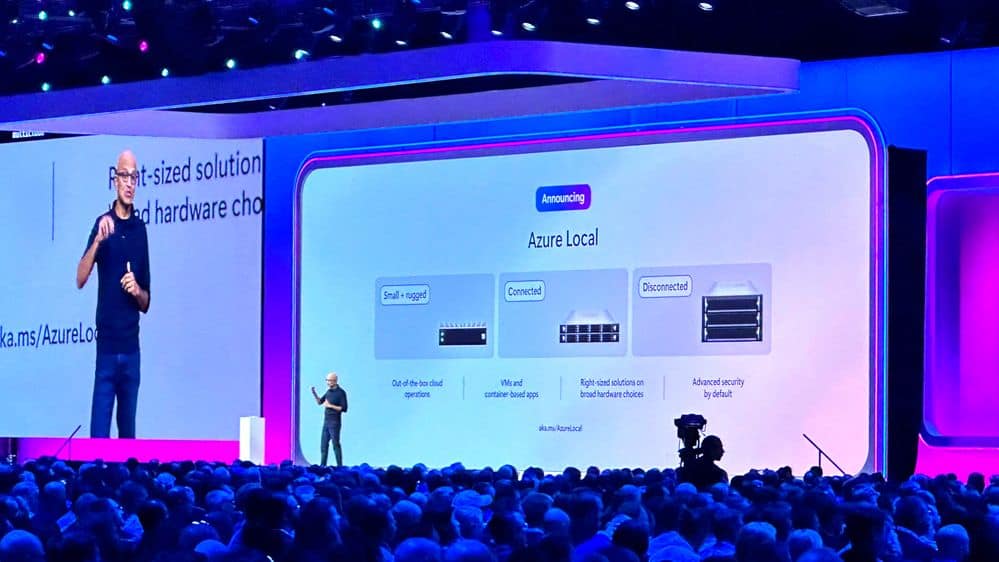
Hybrid cloud isn’t new, but how organisations actually do hybrid — with consistency, performance, and control — still feels messy. Microsoft’s latest technologies, Azure Local and Azure Arc, aim to address this by providing businesses with a consistent way to run and manage workloads across both cloud and on-premises environments.
But what is the difference between the two? and what practical benefits they bring to the table.
What Is Azure Local?
Azure Local is Microsoft’s hybrid infrastructure solution that lets you run virtual machines, containers, and some Azure-style services right in your own data centre or edge locations using validated hardware. It evolved from Azure Stack HCI and is designed to bring the same kind of tools and experience you get in Azure to local infrastructure.
In simple terms:
- It looks and behaves like a cloud-aligned hyperconverged infrastructure you own and operate.
- You deploy and run your workloads locally — but manage them through familiar Azure platforms.
- It works on certified hardware and integrates with Azure management tooling out of the box.
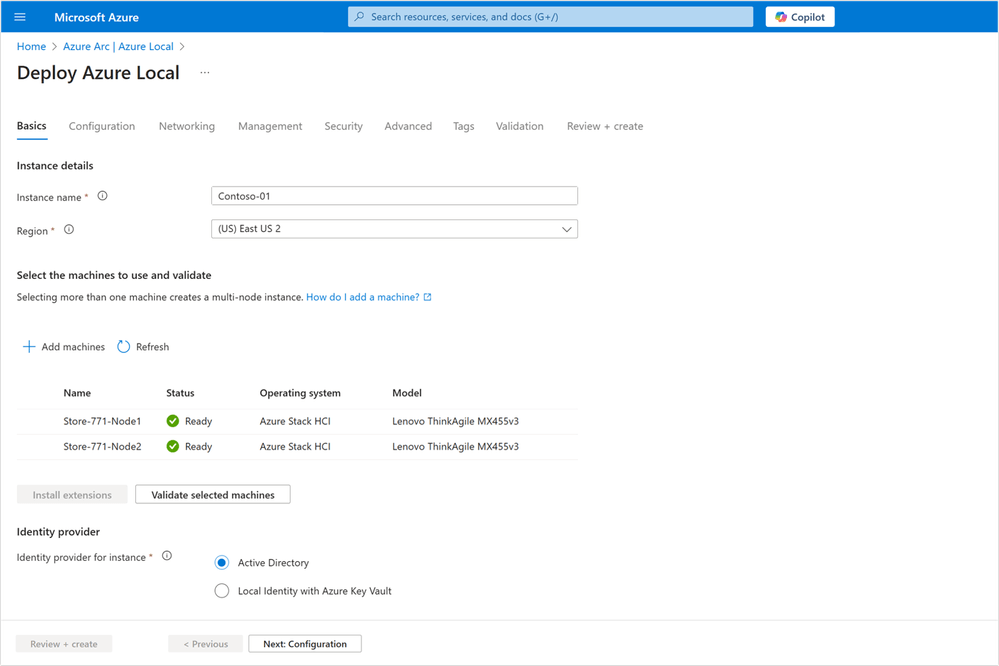
Behind the scenes, Azure Local includes Azure Arc’s control plane components so the local system is automatically connected into the broader Azure ecosystem.
What Is Azure Arc?
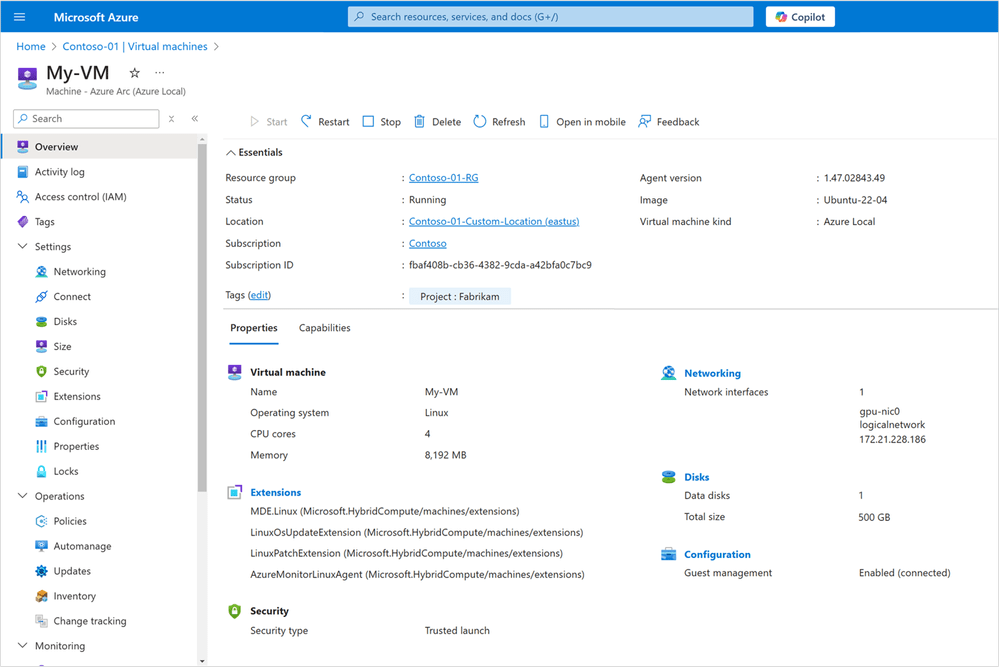
Azure Arc is not infrastructure hardware or software running on your servers — it’s a management layer that makes all your distributed resources look and behave like native Azure resources from a governance and management perspective.
With Azure Arc you can:
- Bring on-premises servers, Kubernetes clusters, databases, and more under Azure management.
- Apply policies, security controls, and monitoring consistently across environments (cloud, on-premises, and other clouds).
- Utilise Azure tools and APIs to manage resources that reside anywhere.
Arc works by registering external resources in Azure Resource Manager, giving a single pane of glass for policy, security, automation, and tooling — even if the actual workload never runs in Azure itself.
Azure Local vs. Azure Arc — What’s the Difference?
Here’s the real, practical distinction:
- Azure Local is infrastructure-oriented. It’s the software stack you deploy on hardware so you can run workloads locally with cloud-style management and services.
- Azure Arc is management-oriented. It doesn’t provide infrastructure — it connects whatever infrastructure you have into Azure’s management layer so you can run governance, security, and automation consistently.
You use Arc to manage things everywhere. You use Azure Local when you want to run cloud-like infrastructure in your own location (perhaps for compliance reasons.
So in Simple Terms:
- Azure Local = cloud-like infrastructure you run locally.
- Azure Arc = a way to manage, secure, and govern resources consistently across cloud and hybrid environments.
Used together, they help businesses standardise operations, reduce complexity, and extend cloud tools and policies wherever workloads live.
Why This Matters: Real Business Benefits
Hybrid cloud strategies need to balance performance, control, cost, and security. Azure Local and Azure Arc offer practical value in these areas:
1. Consistent Operations
Both technologies let you use the same tools, dashboards, and policies whether workloads are in Azure or on your own hardware. That reduces operational fragmentation and simplifies management.
2. Control + Compliance
Some workloads must stay local for regulatory, compliance, or data residency reasons. Azure Local lets businesses host and manage those workloads with a cloud-aligned model while keeping data where it needs to be.
3. Performance Where It Matters
Running compute or analytics locally can be essential where low latency or local decision-making is a priority — for example, in retail, manufacturing, or remote sites with connectivity constraints.
4. Simplified Governance and Security
Azure Arc gives you a single control plane for consistent policy enforcement, security monitoring, and compliance — avoiding tool sprawl and governance gaps across environments.
5. Infrastructure Modernisation Without Disruption
If you have ageing on-premises systems or siloed infrastructure stacks, Azure Local lets you modernise that infrastructure without ripping and replacing apps. You can modernise at your own pace while keeping centralised management via Azure.
In Closing
Hybrid cloud doesn’t have to be two separate worlds — one for cloud and another for on-prem. With Azure Local and Azure Arc, organisations can bring the best parts of cloud operations to wherever they run workloads and manage everything with one consistent set of tools and policies.